Your first student in 5 minutes
Six steps with real screens, from sign-up to the first homework. Everything shown here is a made-up “Demo School”: its students, lessons and reports are not real.
Open your school in @lessonwing_bot
Message @lessonwing_bot on Telegram and tap "🎓 Start a free school". No password, no card: you are the teacher of your own school on the Free plan right away, up to 10 students.
The bot sends one message with the same three steps your dashboard’s home shows: add a student, make a lesson, send homework. Open your dashboard takes you to app.lessonwing.com already signed in; How to start opens this page.

Add your students, and their parents
- A link for the student. In the dashboard: Students → Add a student. Each student gets a one-time link into the bot; send it any way you like.
- A link for a parent. Turn it on in the same form: the parent sees reports and progress, not the tasks. Send the page for parents with it.
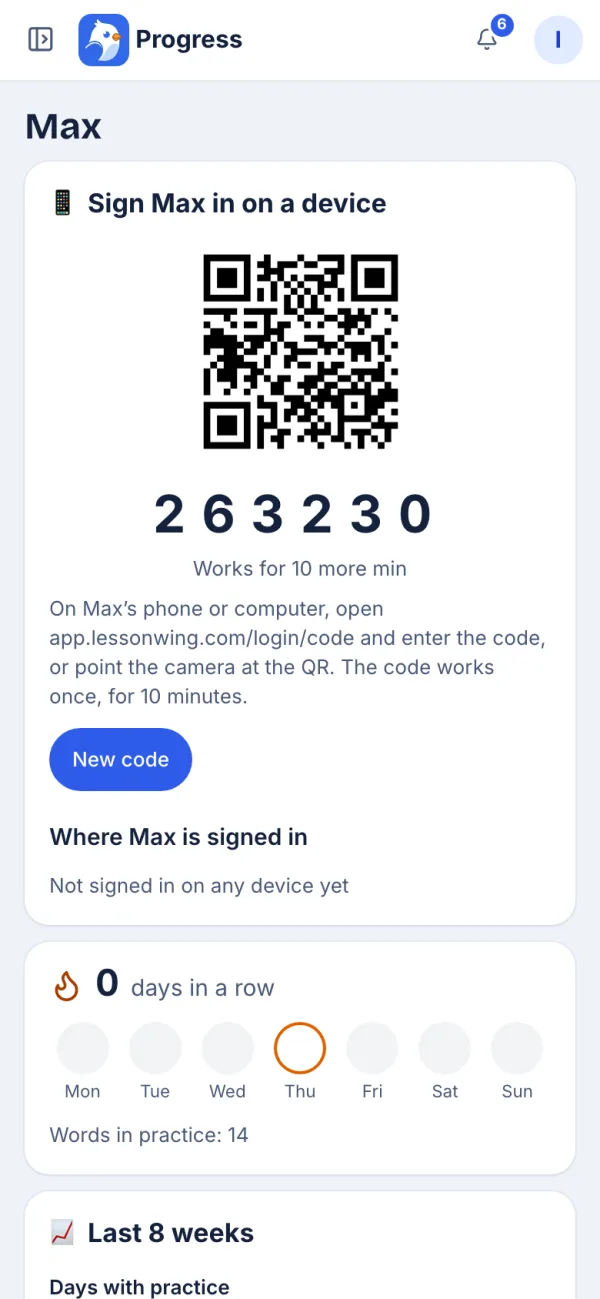
- A child without Telegram. Turn on parental control: the child learns in the app and signs in with a code the parent gets in the bot (
/child_login) or in the app ("Sign in on a device").

Make your first lesson
Pick your way:
- From a topic, no setup: on your home, Make your first lesson → describe the topic. The ✨ built-in AI drafts the words and questions for about 2 AI points; the line under the button shows how many are left this month, and the draft page shows the estimate before you start.
- By hand, no AI points: Start an empty lesson (on your home or in Lessons) → a title and a level, then add the words and questions yourself. Free on every plan.
- Ask your AI app: send it a photo of a book page and write, say, "Make a lesson from this page for Sophie, level A2". It puts together the words, notes and homework as a draft.
Students get only what you approved: everything new is a draft until you tap Send. Any word, question, note or task, even one the AI made, can be fixed by hand right in the dashboard.

Connect your own AI (optional)
- In the dashboard, open the AI page and copy the connection address (
https://app.lessonwing.com/mcp). - In Claude: Settings → Connectors → Add custom connector, paste the address. For Antigravity the page has the settings ready to copy.
- Confirm the sign-in in the bot: tap the same number the sign-in page shows. Then ask your AI app: "Show my students".
Your AI app is your own and is free on every plan. Without one, the dashboard has a built-in AI (Claude by Anthropic) that spends your plan's AI points. Neither sends students anything without your "yes".

What students and parents see
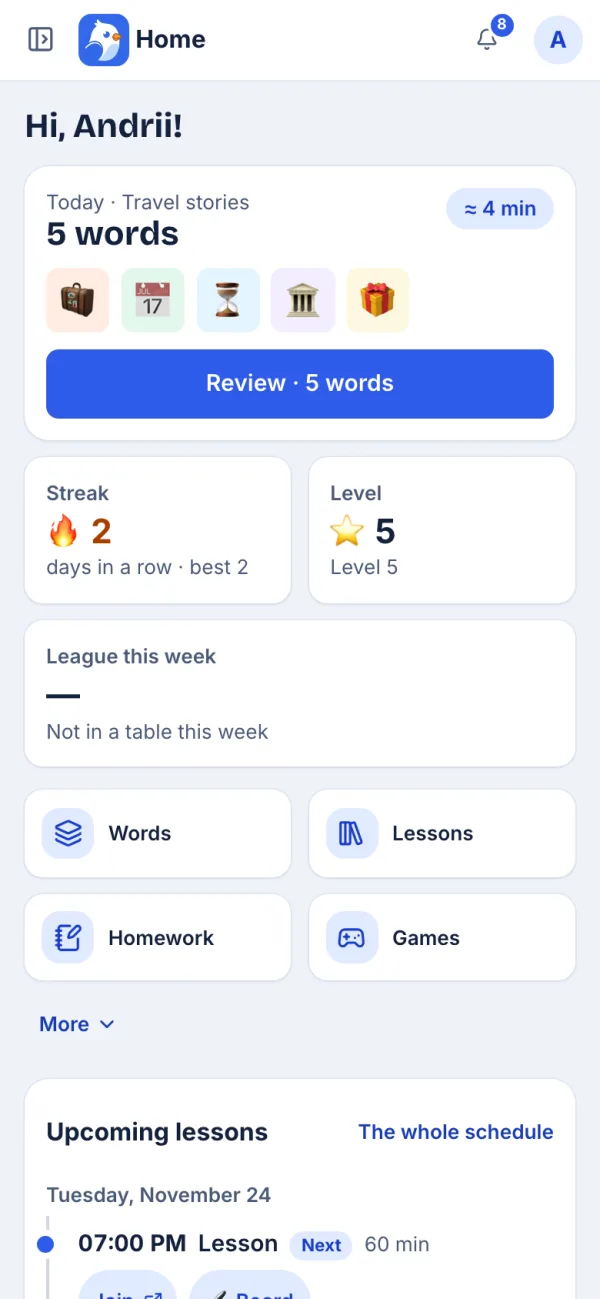
- Students learn in the bot and in the app on their phone: new words every day, the lesson with its notes, homework that checks itself, games, the league and stickers.
- Reminders of lessons and homework go out from the bot by themselves.
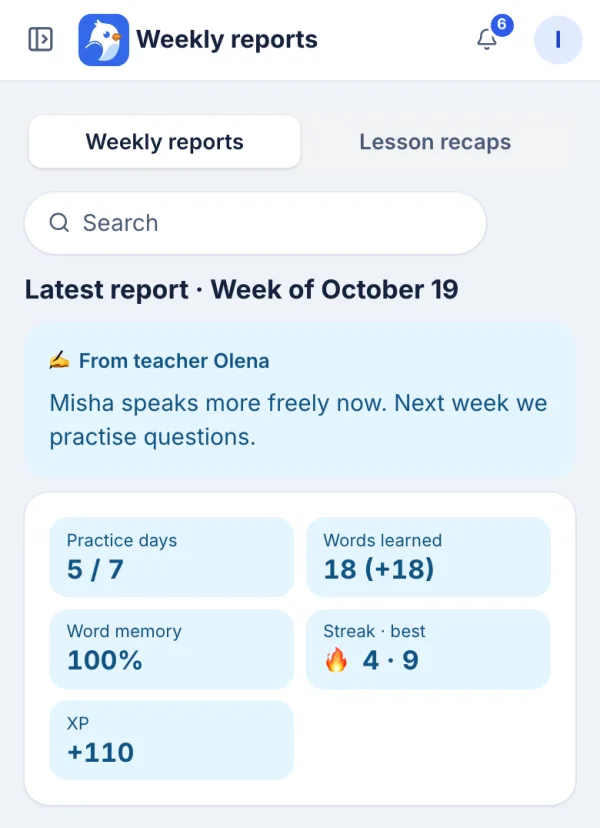
- Parents get a weekly report in their language, with your note on top. They never see the tasks.
Plans and the Free plan
| Plan | Students | Price |
|---|---|---|
| Free | up to 10 | $0 |
| Teacher | up to 30 | $10 / month |
| Pro | up to 100 | $20 / month |
Once the Free plan has 10 students, the dashboard and your AI say plainly that there is no room: delete a student you no longer teach to make room; bigger plans are coming soon. The Free plan stays free for up to 10 students; paid plans start when billing opens. All prices

LessonWing in one minute
Lessons, the AI, what students and parents see, the plans.
Your dashboard shows what is next
Until you have a student, a lesson and a homework sent, your home shows only the next of three steps, with one button, and the menu keeps four sections, the rest one tap away under More. Steps are ticked by themselves; “Show the whole dashboard” brings everything back at any time.
Start in Telegram